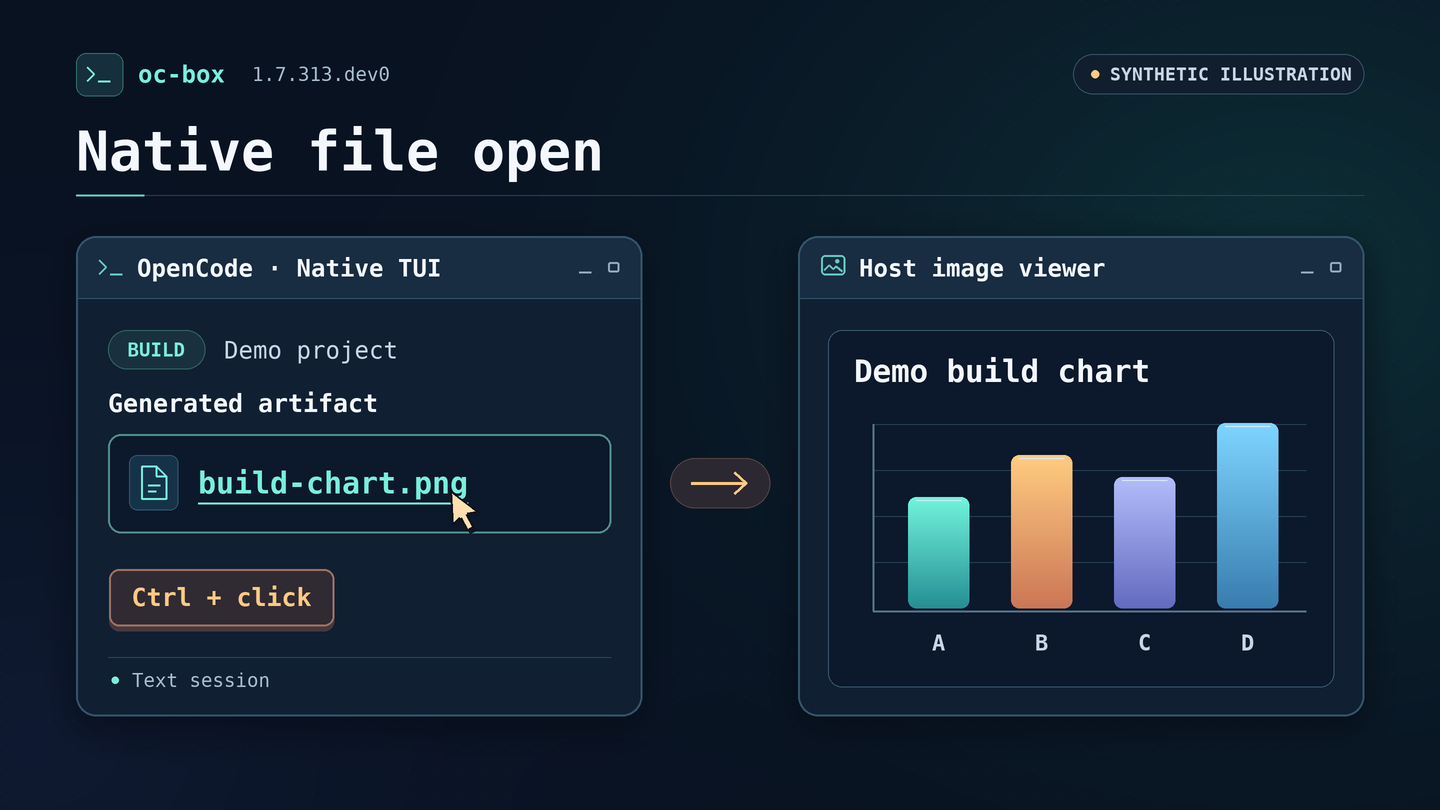
OpenCode generates a chart inside your container. You Ctrl-click the link, and the chart opens in your desktop image viewer. Later, you move that workspace to another Linux machine and bring along your settings and encrypted vault. When you need to check what’s happening, you get a readable table instead of digging through JSON.
That’s the idea behind oc-box 1.7.313.dev0: make it easier to work across the host and container boundary without turning the two into one big shared environment. oc-box runs OpenCode and its integrations inside private, rootless Podman workspaces. This release adds better ways to get a result out, take your setup with you, and see what the launcher is doing.
Get oc-box 1.7.313.dev0 on GitHub or install it from PyPI.
From an OpenCode reply to your desktop in one click
Ctrl-click a file link to open a fresh copy in your host’s default app. There’s no preview panel or second confirmation. If you edit the copy, the container’s original stays unchanged. There’s no live share or write-back. Click the link again after regenerating a report and you get the latest file, not yesterday’s copy.
PNG goes to your image viewer. Plain text and Markdown go to their associated apps. HTML opens as a static copy for reading, without scripts or remote resources. Markdown is handed over as text, so use a plain-text editor for untrusted drafts if your viewer can load active content. PDFs and SVGs aren’t part of this opening feature.
Use native OpenCode 2.3.x directly in Konsole or Yakuake:
OC_BOX_EXPERIMENTAL_FILE_OPEN=1 oc-box --project ~/devel/demoIn the reply, click an actual file link, not an unlinked path, and hold Ctrl through mouse release. Relative links resolve inside the session’s directory. Each click grants at most one transfer, and a link on its own grants nothing. Copies stay private, with a cap of 128 copies and 64 MiB total. Copies older than 24 hours are cleared on a later open. Ordinary web links still behave normally.
The terminal relay also handles more of the escape sequences that can interrupt clipboard shortcuts. It can recover at a recognizable input boundary without replaying what you typed or treating the recovery bytes as permission to read the clipboard or open a file. Use a fresh Ctrl+Y to import from the clipboard on a supported client. Ctrl+V is still ordinary paste.
Take your settings and encrypted vault with you
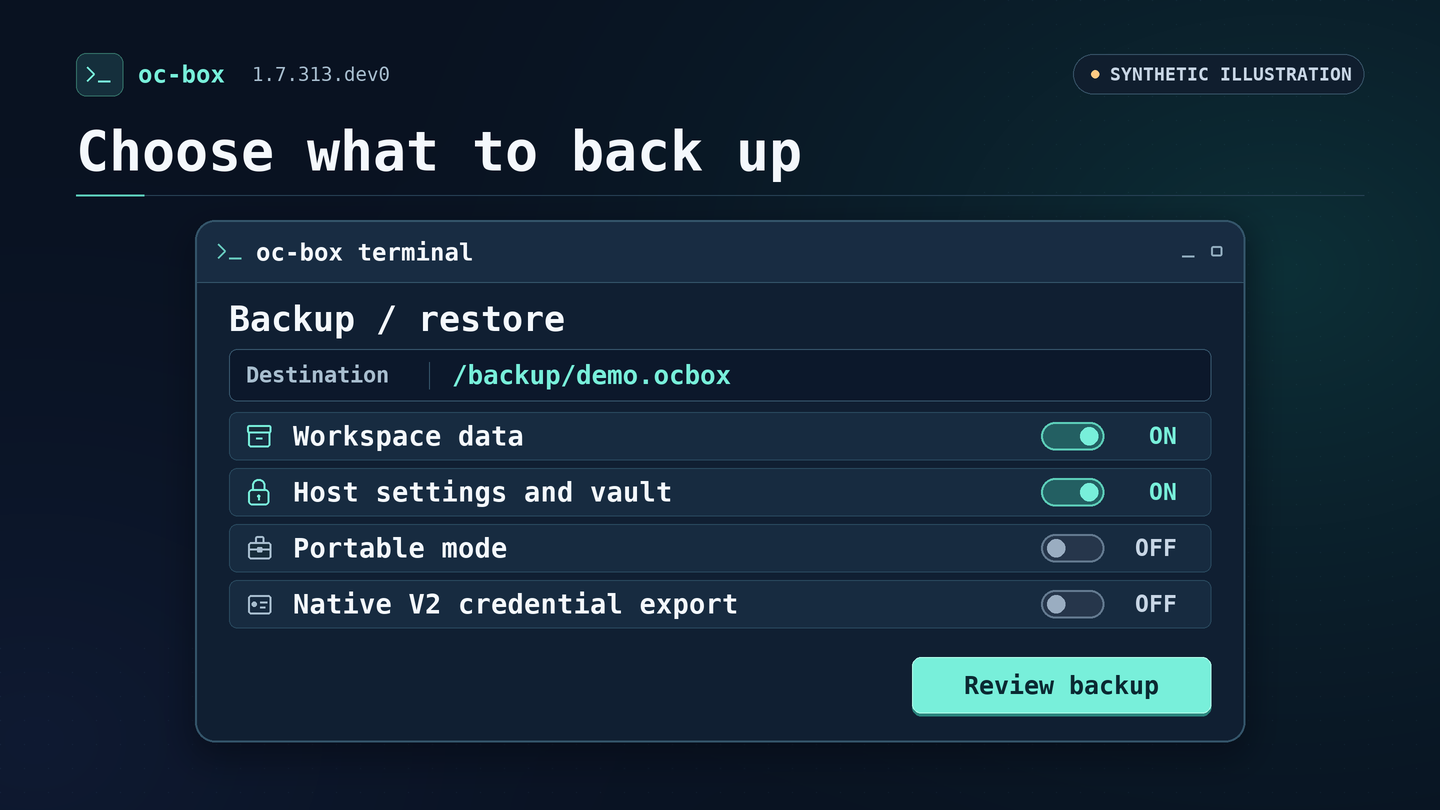
A workspace backup already saves your project, private home, and history. The new `–host` option adds the settings you’d otherwise have to set up again: oc-box configuration, the encrypted vault, and supported OpenCode profile files. Make a host-only archive without Podman, or combine those settings with a full or portable workspace backup. A full backup keeps the container OS image; portable mode leaves it out.
For a settings-only move, with age and age-keygen installed:
oc-box backup --host --output /backup/host.ocbox
oc-box backup-info /backup/host.ocbox --table
oc-box restore /backup/host.ocbox --host
Run the restore on the destination machine using fresh settings paths. The archive is encrypted with age, and the vault stays encrypted with its original passphrase inside it. A workspace restore gets fresh resource IDs, keeps the original in-container paths and history, and stays stopped until you start it. Neither workflow overwrites existing targets or reactivates old device mappings and extra Podman options.
Saved OpenCode logins are a separate choice. To carry native V2 provider or MCP credentials, explicitly supply an opencode auth export --standalone export. The CLI can take it directly through a pipe, with no plaintext export file. The dashboard takes a path to a private export file, not the credential values. On restore, --include-opencode requires separate typed consent and a fresh destination. oc-box verifies the native import with an export round trip before installing the new credential store. It doesn’t copy the whole host database or merge with an existing one.
A backup screen that tells you what’s happening
The dashboard’s Backup/restore tab lets you choose workspace data, host settings, or both, and separately opt in to native credentials when including host settings. The final review lists all selected age recipients. Switching archives clears the host and native restore selections, so approval for one archive doesn’t carry over to another. Native credential restore still needs the explicit restore-opencode confirmation.
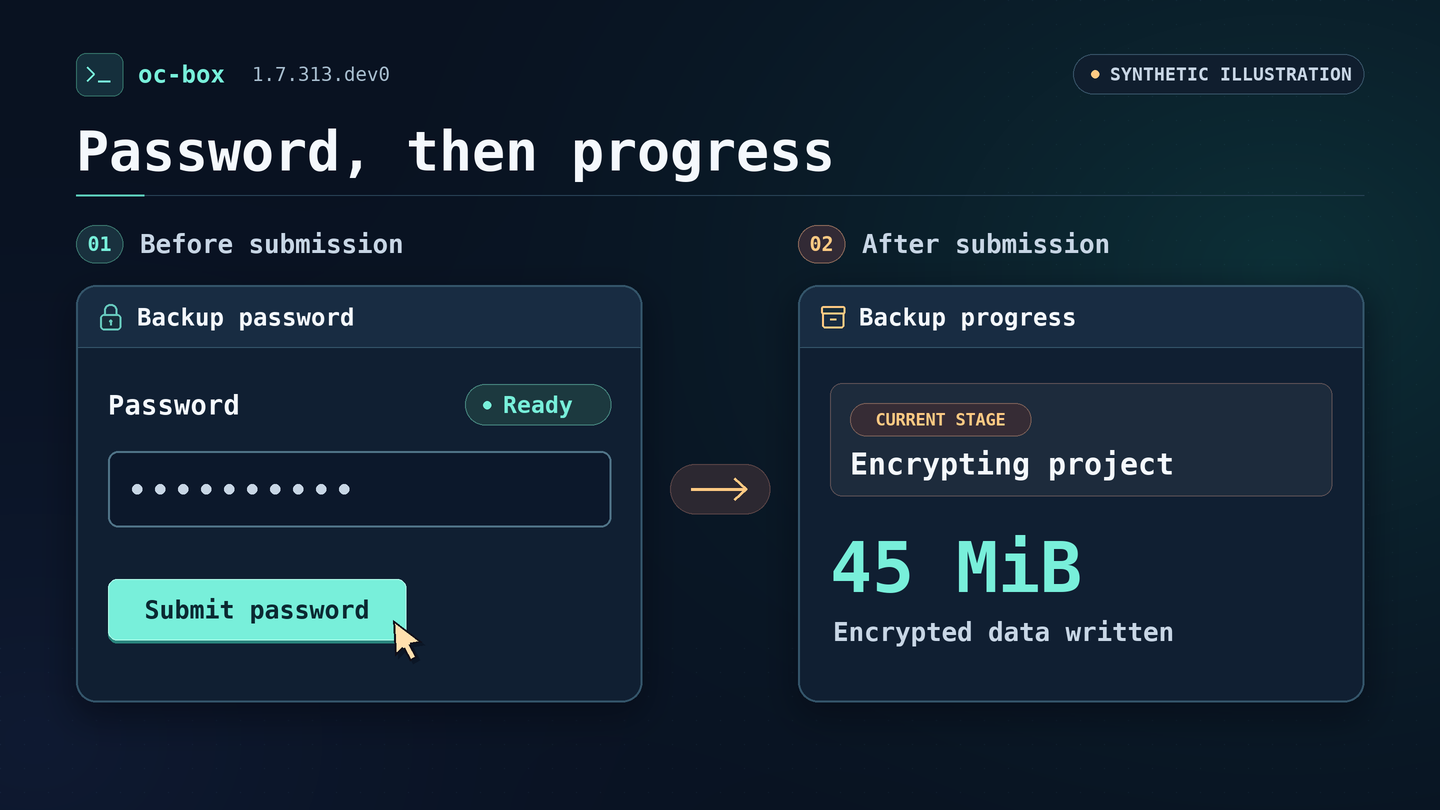
Password entry is simpler: the masked prompt shows Ready, and Submit password works with one click. No extra Enter. Once submitted, the prompt tells you so and the backup keeps going.
For workspace backups, progress now shows how many encrypted bytes have actually moved. You can see bytes written during encryption, checked during verification, or copied while packing the archive. Key protection, container snapshots, and final publication show their stage names without guessing a finish time.
A combined restore also tells you what happened if only part of it succeeded. If, for example, the workspace restores but a locked vault blocks the host step, the dashboard reports the stopped workspace and incomplete host result separately. It doesn’t try again or roll back behind your back. Archive deletion is no longer offered in the dashboard; inspect the file and remove it in your host file manager.
Less digging in the command line
Help is easier to skim: oc-box --help is a short command index, and oc-box COMMAND --help explains the options and gives examples in context. The Bash completion and installed manuals were also updated. Asking for help doesn’t start Podman, open a workspace, or unlock the vault.
Use `–table` when you’re reading the output yourself. It’s available on status, doctor, logs, preferences, and backup-info. Your scripts can keep using JSON, including JSON Lines for logs. The tables use the same filters and exit status; status and backup inspection leave out the values of saved extra Podman options.
oc-box status --table
oc-box doctor --feature backup-info --table
oc-box logs --table --level warn --follow
oc-box preferences --project ~/devel/demo --table
Startup notices for host features are shorter. The launcher keeps useful prompts, warnings, and the history result visible without filling the screen with routine updates. Use --verbose=ALL for more detail about this invocation, or --lifecycle-diagnostics for expanded launcher stages. On oc-box logs, --verbose=ALL instead shows all retained severity levels. The added diagnostics use fixed messages rather than dumping raw commands, tool errors, clipboard contents, or credentials.
The less visible changes
Backup files are packed into a reserved unnamed file before being linked into place without replacing an existing archive. If an interrupted restore can’t prove that it owns a staging directory or resource, it keeps a blocked recovery record instead of deleting it. Preference reads retry if they catch an unsettled write, vault listing uses a dedicated validated names-only path, and the V2 readiness handshake refuses to use terminal output or a regular file.
The release process now builds around the exact candidate commit. Its source and dependency checks include CodeQL and pip-audit. The publishing job checks the built files against their recorded identity and checksums, then rechecks the public tag before uploading to PyPI. The wheel and source archive on GitHub are the same files released to PyPI.
Try the new workflow
Install this exact release with the optional dashboard and vault extras using uv:
uv tool install 'oc-box[tui,vault]==1.7.313.dev0'Open a chart or report from an OpenCode reply, make a small host settings archive, or run oc-box status --table next to a workspace. Start with whichever of those saves you a step today.
For the full details, see the release notes, host migration guide, CLI reference, or changes since 1.7.278.dev0.
Leave a Reply